testD

Description welcome to laboratory

testD

sort by tags

AR02 Switch

DaijiroHashimoto

・Use Pull-up

Normally, When you use switch, you have to connect resister.
But to use Pull-up fanction in Arduino, you can use switch without rester.

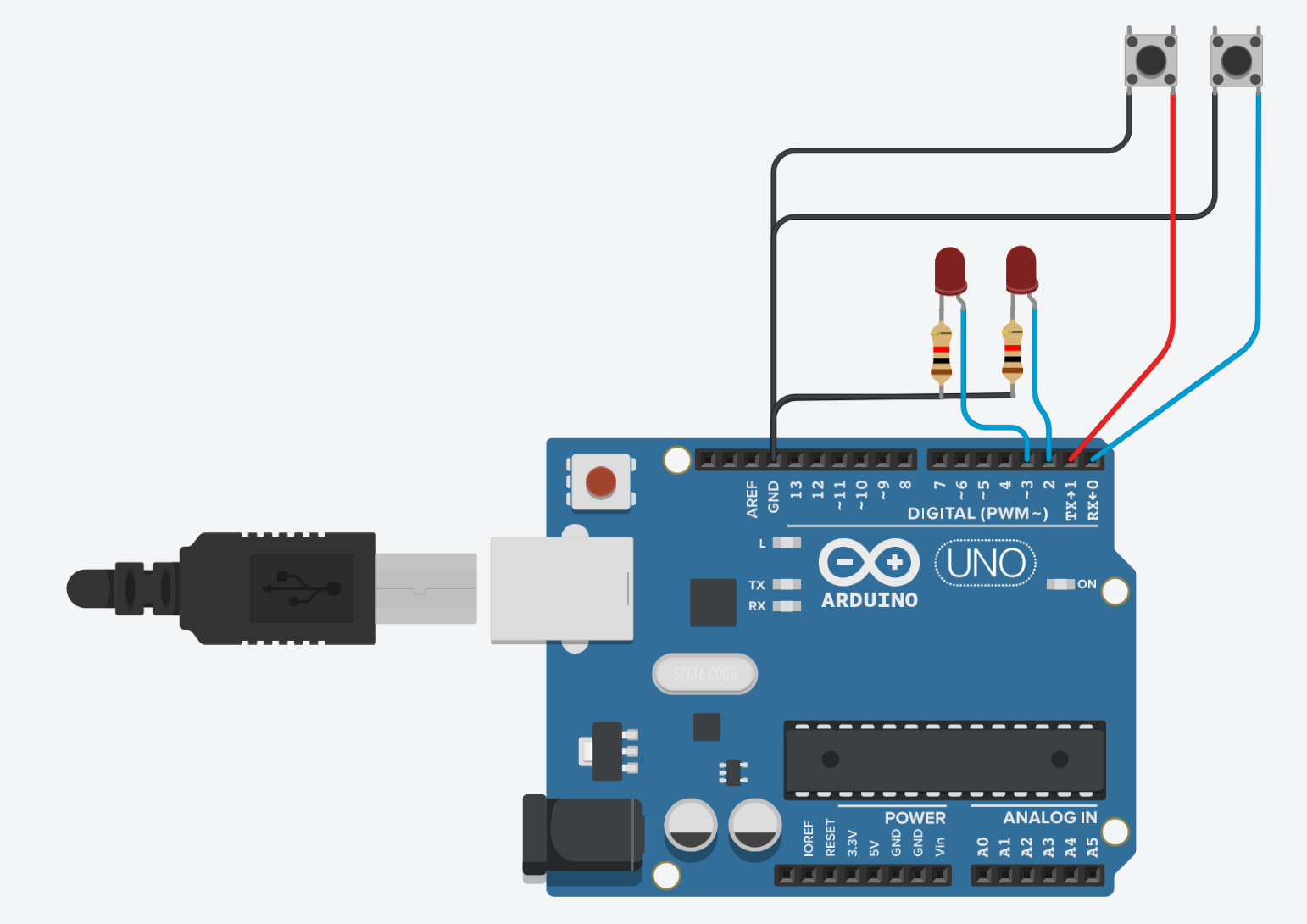
Circuit

Conect Digital pin

Code

#define SW1 0
#define SW2 1

#define LED1 2
#define LED2 3

void setup() {
  pinMode(SW1, INPUT_PULLUP);
  pinMode(SW2, INPUT_PULLUP);
  pinMode(LED1, OUTPUT);
  pinMode(LED2, OUTPUT);
}

void loop() {
  while(digitalRead(SW1) == LOW){
  	digitalWrite(LED1, HIGH);
    delay(500);
    digitalWrite(LED1, LOW);
  }
    
  while(digitalRead(SW2) == LOW){
    digitalWrite(LED2, HIGH);
    delay(500);
    digitalWrite(LED2, LOW);
  }
}elay(1000);

}

AR01 Servo motor

DaijiroHashimoto

Servo motor 600¥ with Arduino

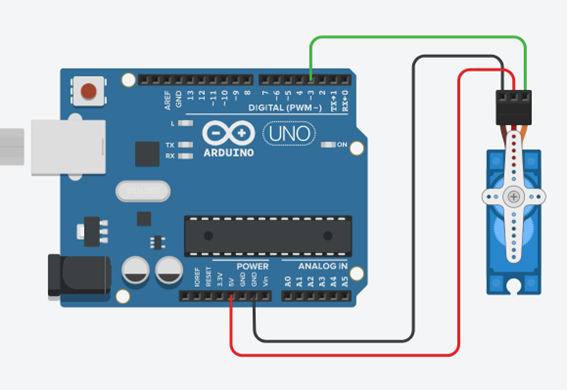
Circuit

Conect 3 pins to

  • GND
  • 5V
  • Digital Pin (it must PWM~ pin)

Code

#include <Servo.h>
Servo myservo;
const int SV = 3;

void setup() {
  // put your setup code here, to run once:
  myservo.attach(SV, 500, 2400);
  
}

void loop() {
  myservo.write(0);  // move motor to 0°
  delay(1000);

  myservo.write(90);  // move motor to 90°
  delay(1000);

}

Reference

https://www.arduino.cc/reference/en/libraries/servo

pdf to wordpress

DaijiroHashimoto

Group B Meeting on Sep. 21 (vol.3) Daijiro Hashimoto


[[ Topics ]]
1, MG400, ROS
2, Future Plan

MG400 [Objective: to try new robot]
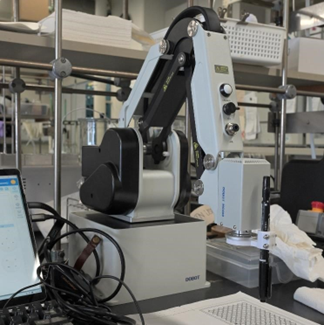
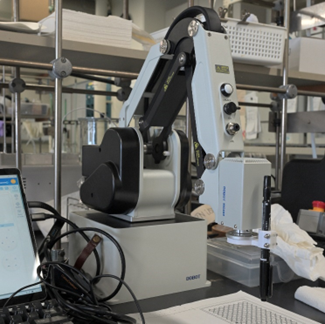
mg400 has arrived.
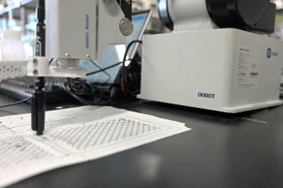
The test is performed using a pen.
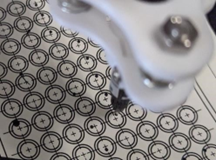
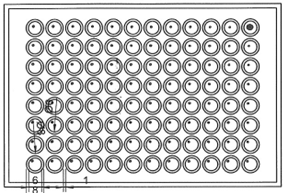
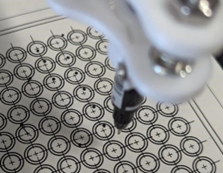
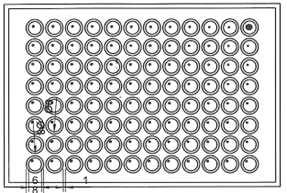
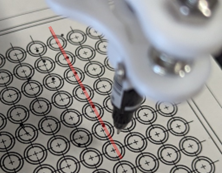
First, I tested whether we could dot the surface of the well plate with precision. I found the robot arm to be highly accurate.

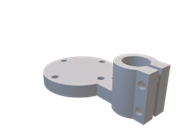
CAD data
sheen of test
attached to manipulator

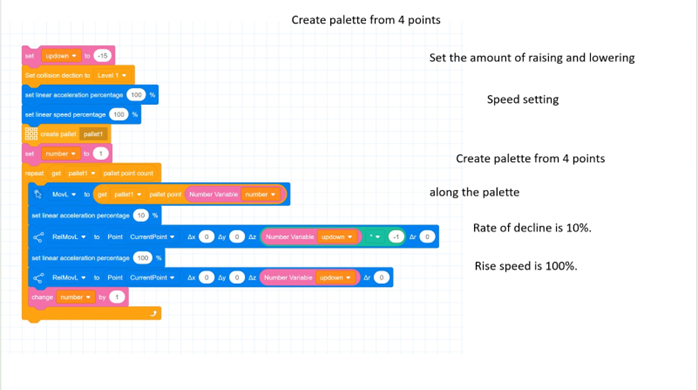
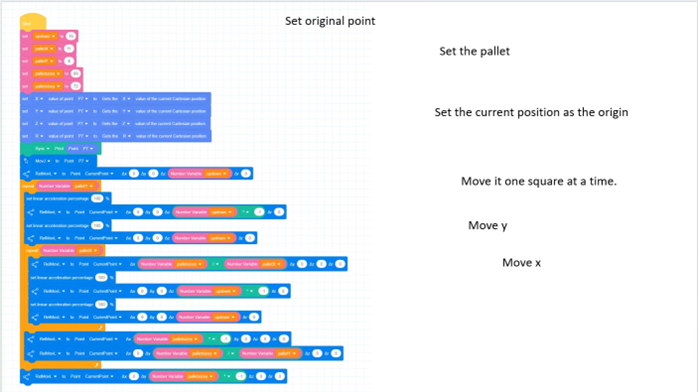
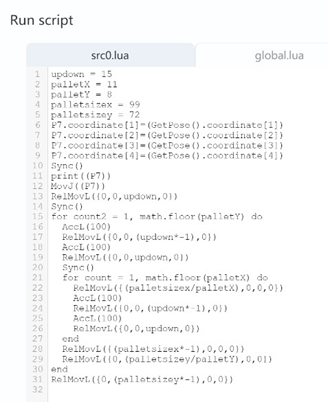
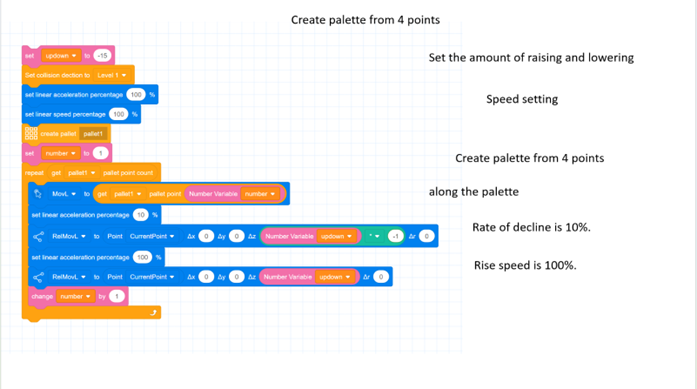
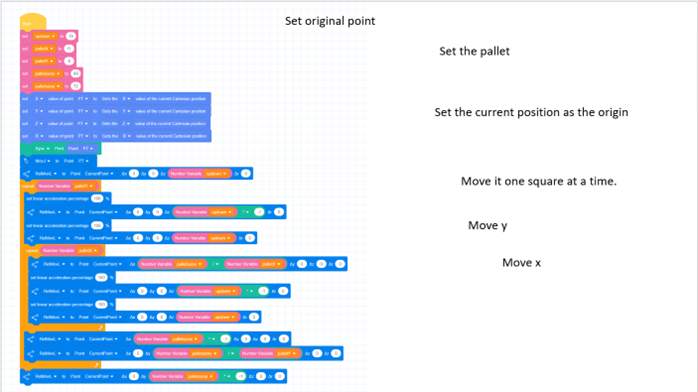
コード is here.

code 1
code 2
code 3

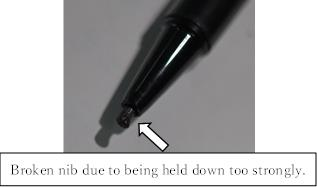
1, A pen nib are damaged.
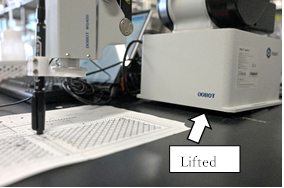
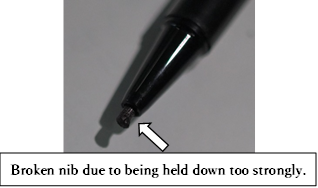
At first, it was done with a v1 holder, but the robot arm did not adjust to the force, and the entire robot lifted, and the nib was crushed.

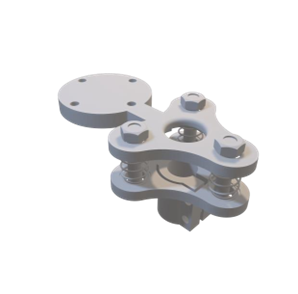
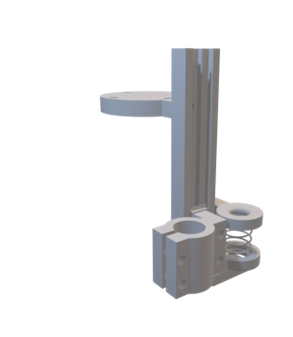
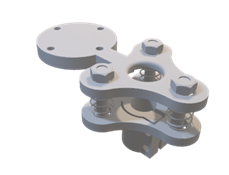
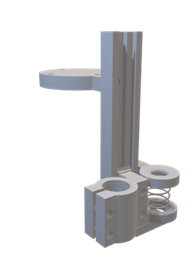
I created a spring-loaded solution(v2).

3d data
result of test

→ When using a robot to make contact, a spring, soft material, or other force-absorbing object is required
Control method

Pen attached to manipulator

2, Coordinates do not match
The program and the actual position must be aligned.
In other words, even if the program is correct, it must be placed correctly.
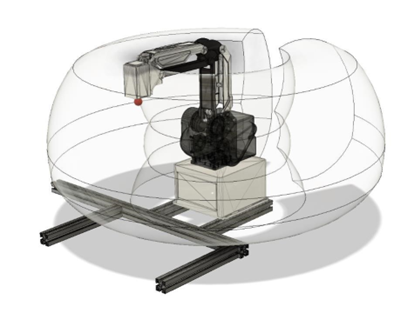
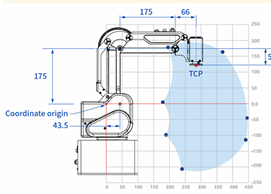
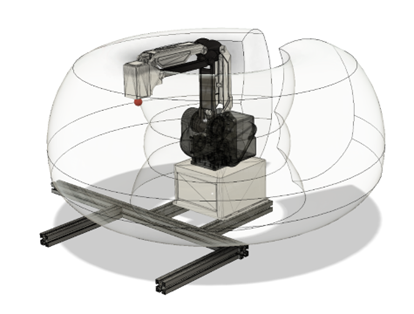
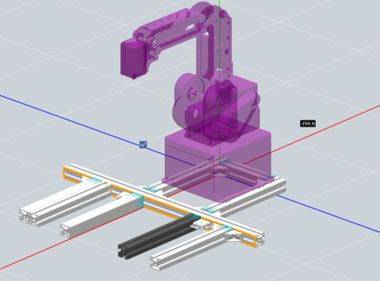
It is not impossible to correct the coordinates, →but it is easier to follow the guide. Range of motion Aluminum frame design

pen
range
range
CAD data

Conclusion
1, Need spring or soft material (if contact to something), 2, Need guide to place correct, Of course, appropriate end-effectors are also needed.
Future Plan
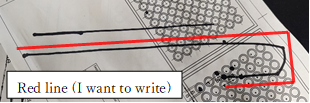
Straight lines cannot be drawn with the v2 pen holder.
Create one with guides so that only up and down movement is possible. Planning(v3)

A similar move will be made in Python.
→ Use Python+ROS
Red line (I want to write)
pen holder V3
All codes work the same way.
→ same program
Standard software is programmed in lua language

a page from word file

DaijiroHashimoto

xGroup B Meeting on Sep. 21 (vol.3)                           

[[ Topics ]]

1, MG400, ROS
2, Future Plan

MG400 [Objective: to try new robot]

mg400 has arrived.
The test is performed using a pen.
First, I tested whether we could dot the surface of the well plate with precision. I found the robot arm to be highly accurate.

Pen holder
CAD data
MG400

コード is here.


1, A pen nib are damaged.

At first, it was done with a v1 holder, but the robot arm did not adjust to the force, and the entire robot lifted, and the nib was crushed.

I created a spring-loaded solution(v2).

Pen holder v2
result of test

→When using a robot to make contact, a spring, soft material, or other force-absorbing object is required.


2, Coordinates do not match

The program and the actual position must be aligned.
In other words, even if the program is correct, it must be placed correctly.
It is not impossible to correct the coordinates, →but it is easier to follow the guide.

direction are not match
move range
Range of motion 
 Aluminum frame design

Conclusion

1, Need spring or soft material (if contact to something),
2, Need guide to place correct,

Of course, appropriate end-effectors are also needed.

Future Plan

Straight lines cannot be drawn with the v2 pen holder.
Create one with guides so that only up and down movement is possible. Planning(v3)
A similar move will be made in Python.

→ Use Python+ROS

All codes work the same way.

→ same program

Standard software is programmed in lua language

test D from PDF

DaijiroHashimoto

Group B Meeting on Sep. 21 (vol.3)
Daijiro Hashimoto
[[ Topics ]]
1, MG400, ROS
2, Future Plan
MG400 [Objective: to try new robot]
mg400 has arrived.
The test is performed using a pen.
First, I tested whether we could dot the surface of the well
plate with precision. I found the robot arm to be highly
accurate.
コード is on the last page
Pen attached to manipulator
1, A pen nib are damaged.
At first, it was done with a v1 holder, but the robot arm did not adjust to the force, and the entire robot lifted, and
the nib was crushed.
Lifted
I created a spring-loaded solution(v2).
→When using a robot to make
contact, a spring, soft material, or
other force-absorbing object is
required
Broken nib due to being held down too strongly.
Control method
2, Coordinates do not match
The program and the actual position must be aligned.
In other words, even if the program is correct, it must be placed correctly.
It is not impossible to correct the coordinates, →but it is easier to follow the guide.
Range of motion
Aluminum frame design
Conclusion
1, Need spring or soft material (if contact to something), 2, Need guide to place correct,
Of course, appropriate end-effectors are also needed.
Future Plan
Straight lines cannot be drawn with the v2 pen holder.
Create one with guides so that only up and down movement is possible. Planning(v3)
A similar move will be made in Python.
→ Use Python+ROS
Red line (I want to write)
pen holder V3
All codes work the same way.
→ same program
Standard software is programmed in lua language

Misumi Framesの使い方

DaijiroHashimoto

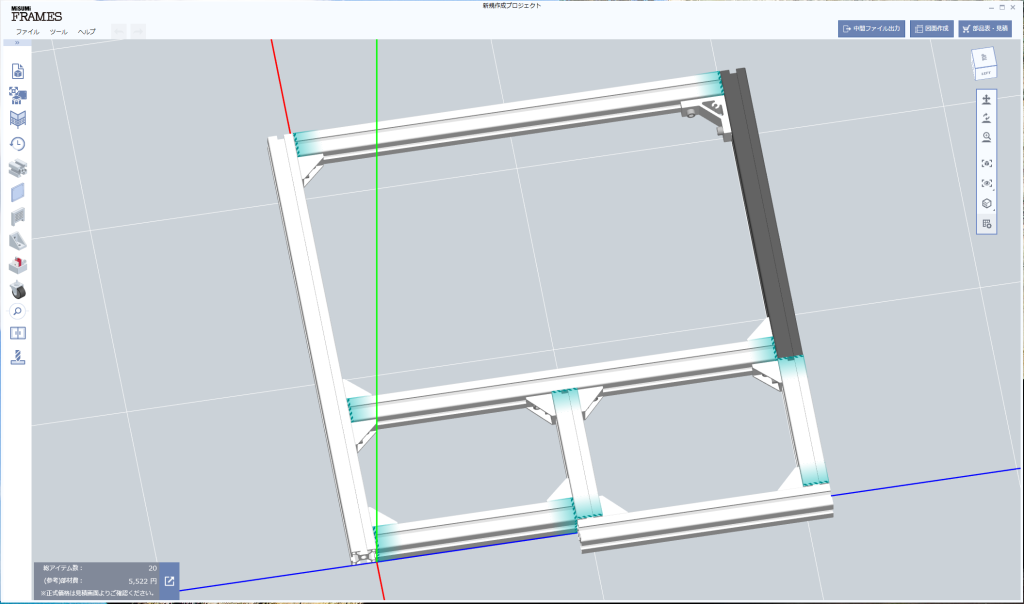
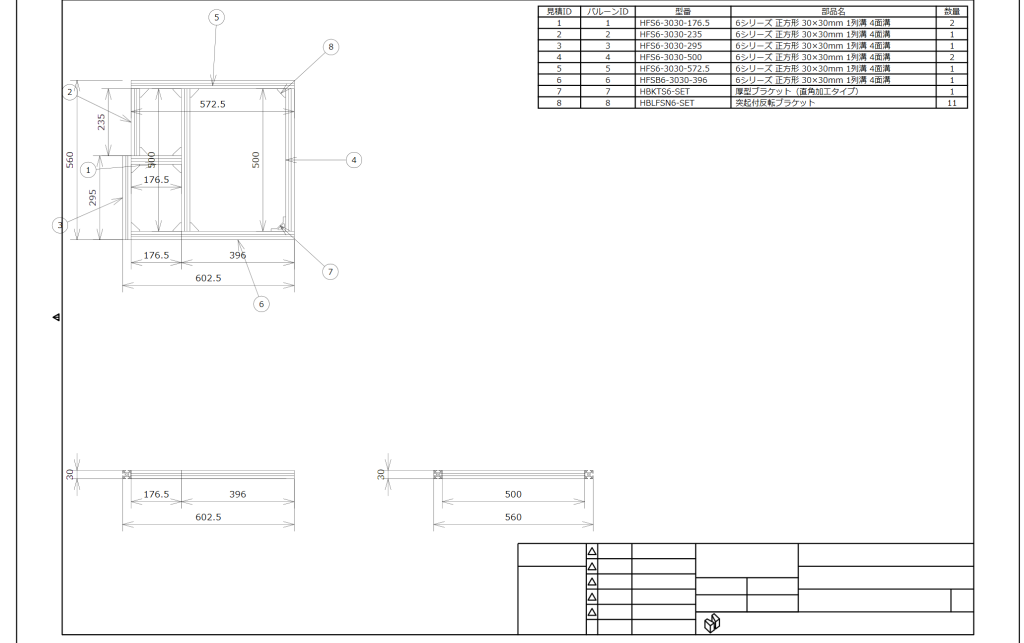
こんな画面

デフォルト部品の変え方(俺はどうしても30x30mmのフレームは嫌だという人向け)
ファイル→環境設定→デフォルト部品 より変更可能。

基本操作
CADソフトのように作成ができる。
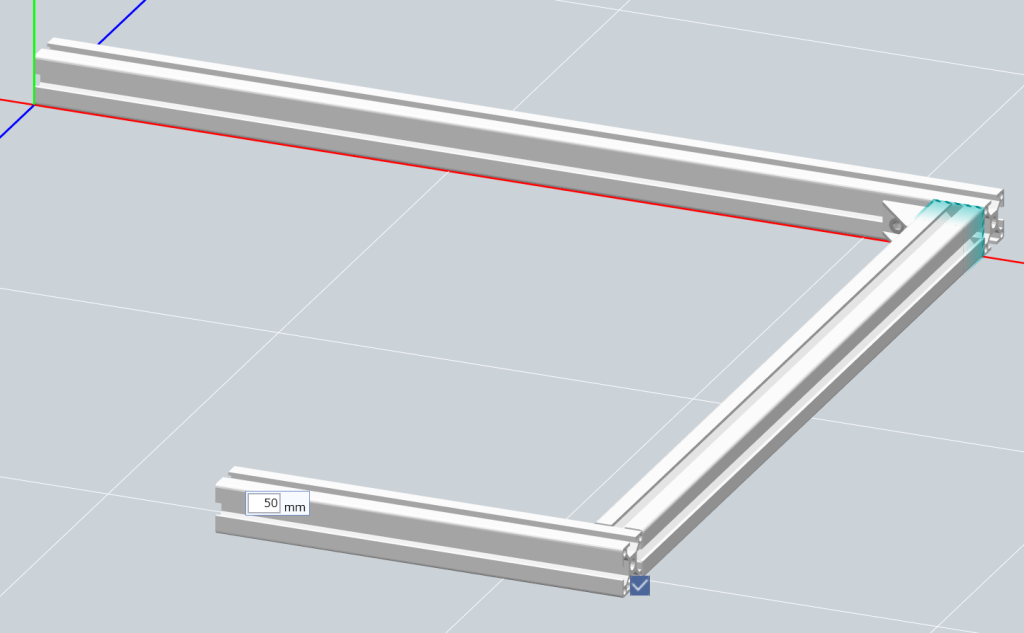
フレームを伸ばしている間Tabキーで数値を入力できる。
勝手にジョイント(デフォルト部品で設定したもの)をつけてくれるので便利

何もツールを選択していない状態で(うまくいかない場合は”完了”などを押す必要あり)
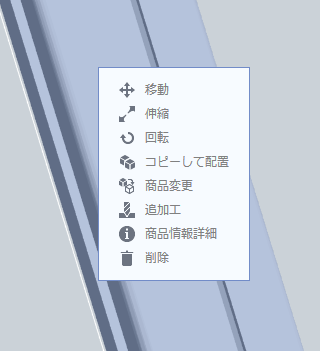
部品を左クリックで選択するとメニューが出る

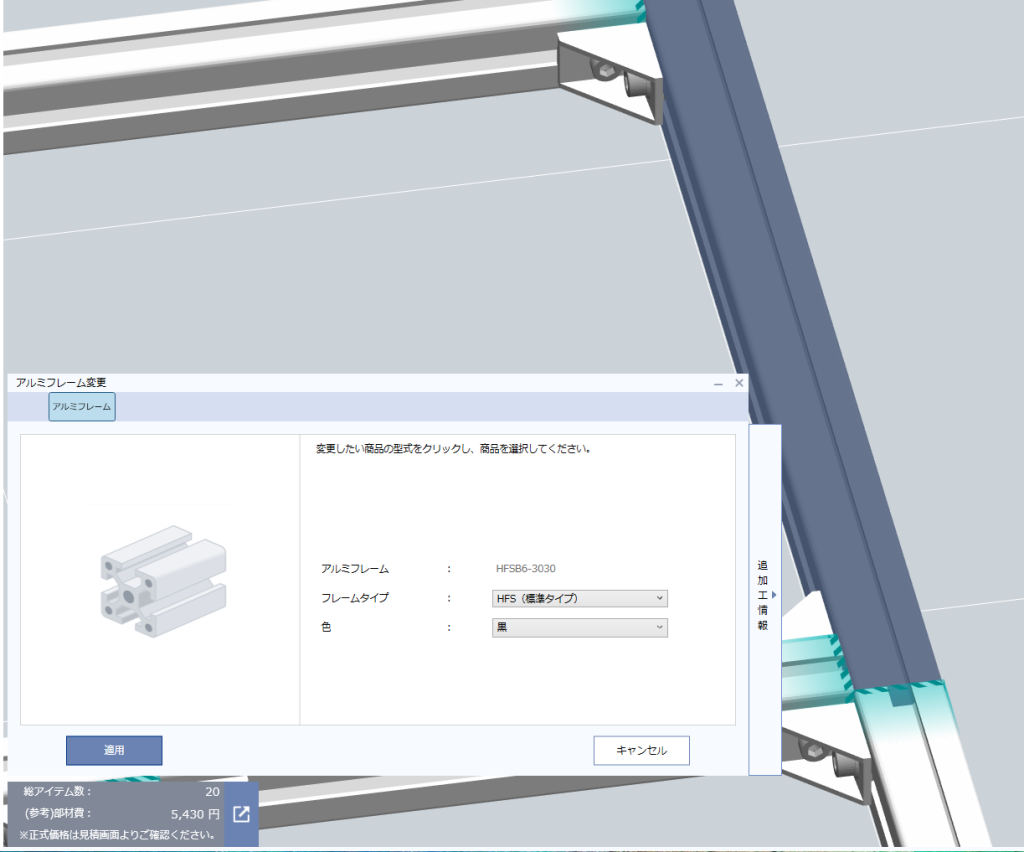
商品変更を押せば、素材や色などを変更できる
ついでに左下には今ある部品の合計金額を表示してくれる。

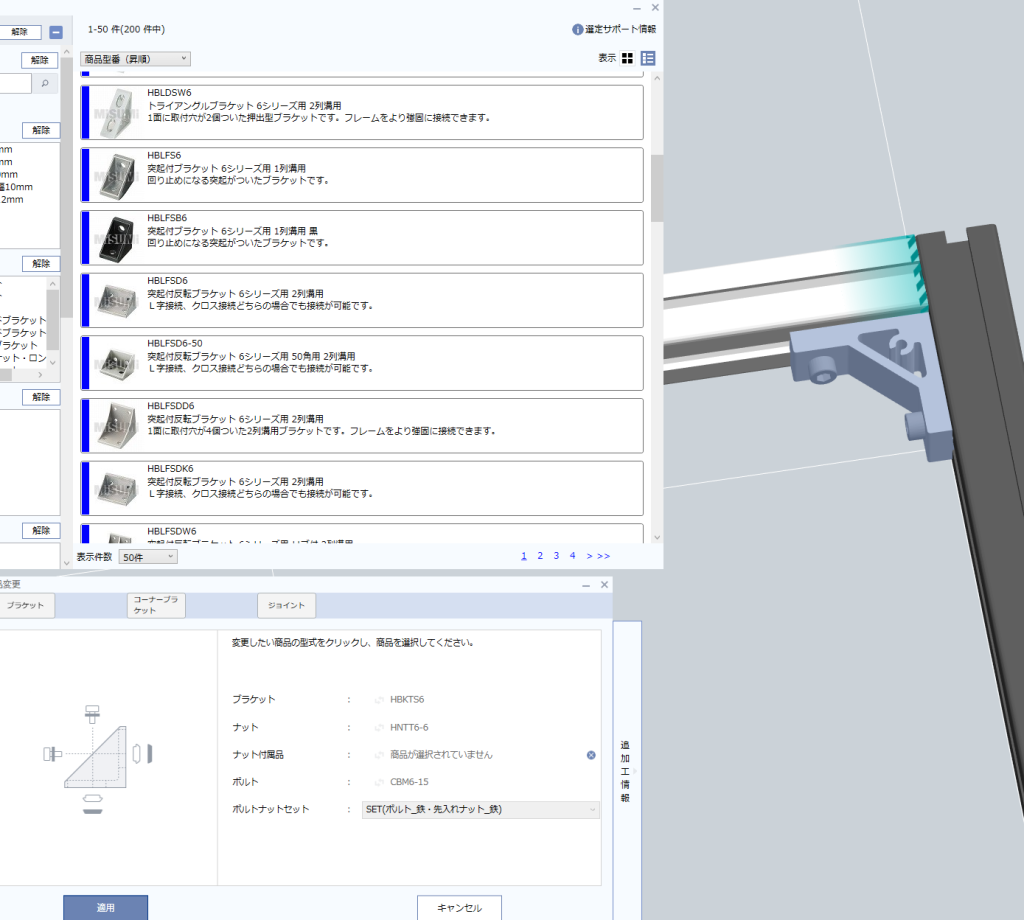
ジョイントの変更もできる

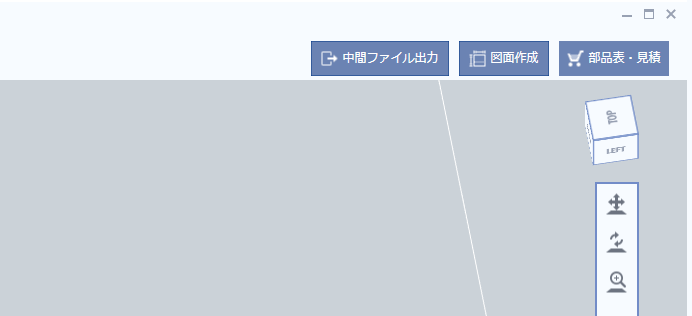
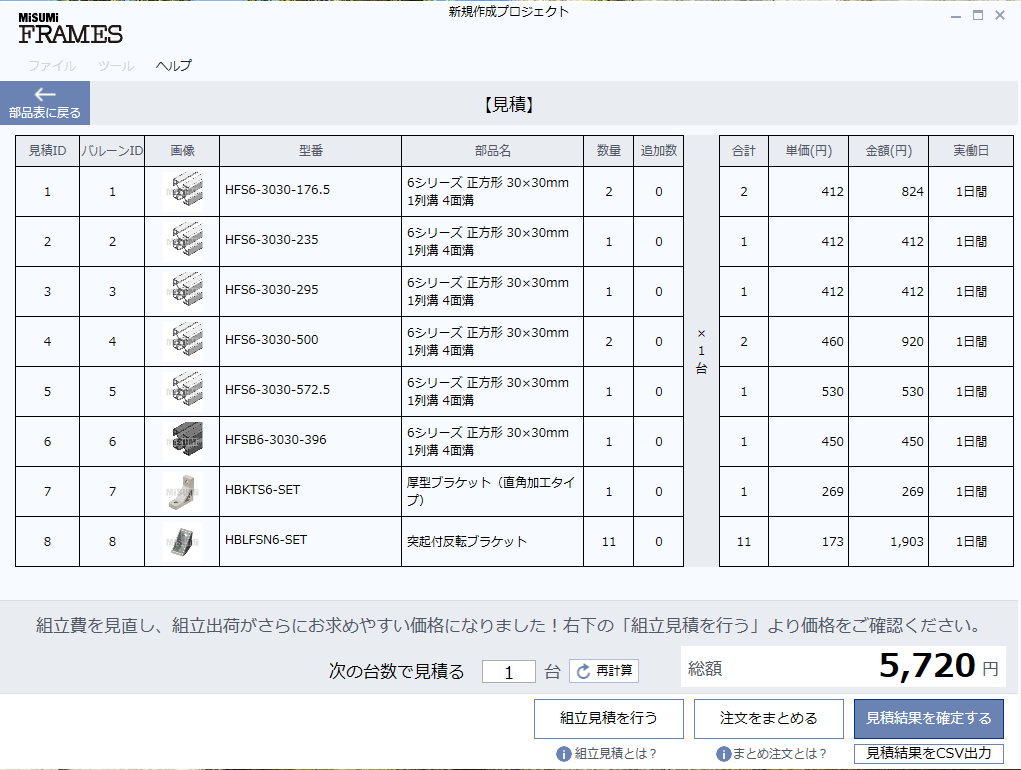
右上の図面作成、部品表・見積もりより

見積もりも出せる。(このままオーダーも可能)

Misumi Frames のインストール

DaijiroHashimoto

アルミフレーム筐体設計ソフト

要点
何ができる→アルミフレームの設計と設計データからの見積もり(←これがチョー便利)


インストール方法

1, Misumiへの会員登録+インストーラーのダウンロード
https://jp.misumi-ec.com/special/alumiframe/frames/pr/

2, HDD/SSDのセクターサイズの変更 (重要)
 なぜ?
 セクターサイズが4096より大きいとSQLサーバーがインストールに失敗する。
 一度インストールに失敗すると再度Windowsをインストールするしか解決方法がない(と思っている。)
 https://support.yayoi-kk.co.jp/faq_Subcontents.html?page_id=26890
 以下の手順は上記リンクの内容です。

2-1, コマンドプロンプトを起動(管理者権限)
2-2, fsutil fsinfo sectorinfo C:   を入力、実行
  PhysicalBytesPerSectorForAtomicityとPhysicalBytesPerSectorForPerformanceが4096を超えているか確認

  4096より大きい→ 2-3 へ
  4096以下   →  3 へ (レジストリ変更の必要なし)

2-3, 以下リンクをダウンロード(参考サイトにもあります。)
https://www.yayoi-kk.co.jp/appli/d_file/common/YCMZZK220201.zip?_gl=11cagked_gaMjEyMjI0ODE1Mi4xNjk0NDkzNDU5_ga_N9E9HM5H0E*MTY5NDQ5MzQ1OC4xLjEuMTY5NDQ5MzQ2NS41My4wLjA.&_ga=2.120377792.993350407.1694493459-2122248152.1694493459

2-4, ダウンロードしたレジストリを実行

2-5, 再起動

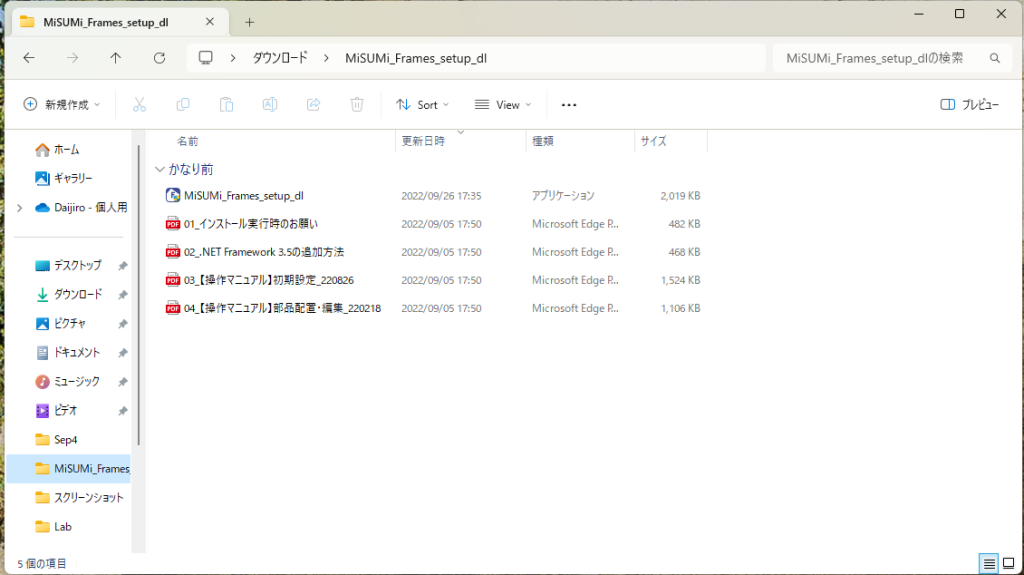
3, MiSUMi_Frames_setup_dl を実行、手順に従いインストール

4, 起動

VD01 マイクの音量について

DaijiroHashimoto

マイクの音量は最大音量が-6dbになるように調整する。

参考動画

How to install ROS

DaijiroHashimoto

Install Linux vis Virtual Box


16px 16px may the force be with you may the force be with you

18px 18px may the force be with you may the force be with you

20px 20pxmay the force be with you may the force be with you

1, Download VirtualBox v7.0.8 and install it.
From https://www.virtualbox.org/wiki/Downloads

2, Download Ubuntu v20.04.6 (I did try at v22. this is ISO file you do nothing)
From https://ubuntu.com/download/desktop#enterprise

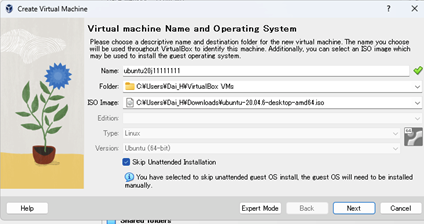
3, Open VirtualBox and Press “NEW” then

  1. Select ISO Image that was downloaded at 2
  2. Check “Skip Unattended Installation”
    (if you didn’t after a while, you may not open terminal and can’t read Disk image.)

To be able to copy and past between Win-Linux

Reference
https://wwwms.meijo-u.ac.jp/kohara/technicalreport/ubuntu20-04_noetic_install

1, Close Linux, at setting set video memory to 128MB and check “enable 3D acceleration”.
(With the default setting of 12MB, the screen display went wrong.)

2, Open Linux

3, Open terminal and try those 3 codes.

sudo apt update
sudo apt install -y dkms
sudo apt upgrade -y

4, restart Linux
5, Press “Insert Guest Additions CD image…” ‘and “RUN”
(or open CD, then rightclick to “autorun.sh”, “run as program”)
6, And then restart
7, “Machine”→”Setting”→”General”→”Advanced”→”Shared Clipboard” and “Drag’n’ Drop” to Bidirectional.

welcome to linux


Install ROS

Reference
http://wiki.ros.org/ROS/Installation/TwoLineInstall/

Open terminal and execute below code

wget -c https://raw.githubusercontent.com/qboticslabs/ros_install_noetic/master/ros_install_noetic.sh && chmod +x ./ros_install_noetic.sh &&./ros_install_noetic.sh

It takes a few minute
*It’s common to install with sudo, but I face the error “Package didn’t find..” and I couldn’t solve it.
After that

sudo apt install python3-osrf-pycommon python3-catkin-tools

How to Install Linux (In short)

1, Download VirtualBox v7.0.8 and install it.

From https://www.virtualbox.org/wiki/Downloads

2, Download Ubuntu v20.04.6 (I did try at v22. this is ISO file you do nothing)

From https://ubuntu.com/download/desktop#enterprise

3, Open Vbox and Press “NEW” then

 1, Select ISO Image that was downloaded at 2

 2,Check “Skip Unattended Installation”

(if you didn’t after a while, you may not open   

terminal and can’t read Disk image.)

Open Linux, first you do a task to you can copy and paste each other.

Press “Insert Guest Additions CD image…” and “RUN”

And then restart  Error

1, Close Linux, at setting set video memory to 128MB

and check “enable 3D acceleration”.

2, Open Linux

3, open terminal and try those 3 codes.

sudo apt update

sudo apt install -y dkms

sudo apt upgrade -y

4, restart Linux

https://linuxfan.info/virtualbox-guest-additions

5, Press “Insert Guest Additions CD image…”  ‘

and “RUN”

(or open CD, then right click to “autorun.sh”,

“run as program”)

6, And then restart

7, “Machine”→”Setting”→”General”→”Advanced”→”Shared Clipboard” and “Drag’n’ Drop” to Bidirectional.


              How to Install Linux (In short)

1, Download VirtualBox v7.0.8 and install it.
From https://www.virtualbox.org/wiki/Downloads

2, Download Ubuntu v20.04.6 (I did try at v22. this is ISO file you do nothing)
From https://ubuntu.com/download/desktop#enterprise

3, Open Vbox and Press “NEW then

 1, Select ISO Image that was downloaded at 2

 2,CheckSkip Unattended Installation

(if you didn’t after a while, you may not open   

terminal and can’t read Disk image.)

Open Linux, first you do a task to you can copy and paste each other.

Press Insert Guest Additions CD image…” and RUN

And then restart  Error

1, Close Linux, at setting set video memory to 128MB

and checkenable 3D acceleration.

2, Open Linux

3, open terminal and try those 3 codes.

sudo apt update

sudo apt install -y dkms

sudo apt upgrade -y

4, restart Linux

https://linuxfan.info/virtualbox-guest-additions

5, PressInsert Guest Additions CD image…” 

and “RUN

(or open CD, then right click to “autorun.sh,

run as program)

6, And then restart

7, “Machine”→”Setting”→”General”→”Advanced”→”Shared Clipboard and Dragn Drop to Bidirectional.

Hello ROS

https://wwwms.meijo-u.ac.jp/kohara/technicalreport/ubuntu20-04_noetic_install

test D this article later than First

DaijiroHashimoto

4K UHD 30p H.265/HVEC 10Mbps 32MB

4K UHD 30p AV1 10Mbps 32MB


A cobot, or collaborative robot, is a robot intended for direct human-robot interaction within a shared space, or where humans and robots are in close proximity. Cobot applications contrast with traditional industrial robot applications in which robots are isolated from human contact.[1] Cobot safety may rely on lightweight construction materials, rounded edges, and inherent limitation of speed and force, or on sensors and software that ensure safe behavior.

  • A cobot, or collaborative robot, is a robot intended for direct human-robot interaction within a shared space, or where humans and robots are in close proximity. Cobot applications contrast with traditional industrial robot applications in which robots are isolated from human contact.[1] Cobot safety may rely on lightweight construction materials, rounded edges, and inherent limitation of speed and force, or on sensors and software that ensure safe behavior.